
LumenDesk · for iPhone + USB-C glasses
Leave the laptop.
Take the desk.
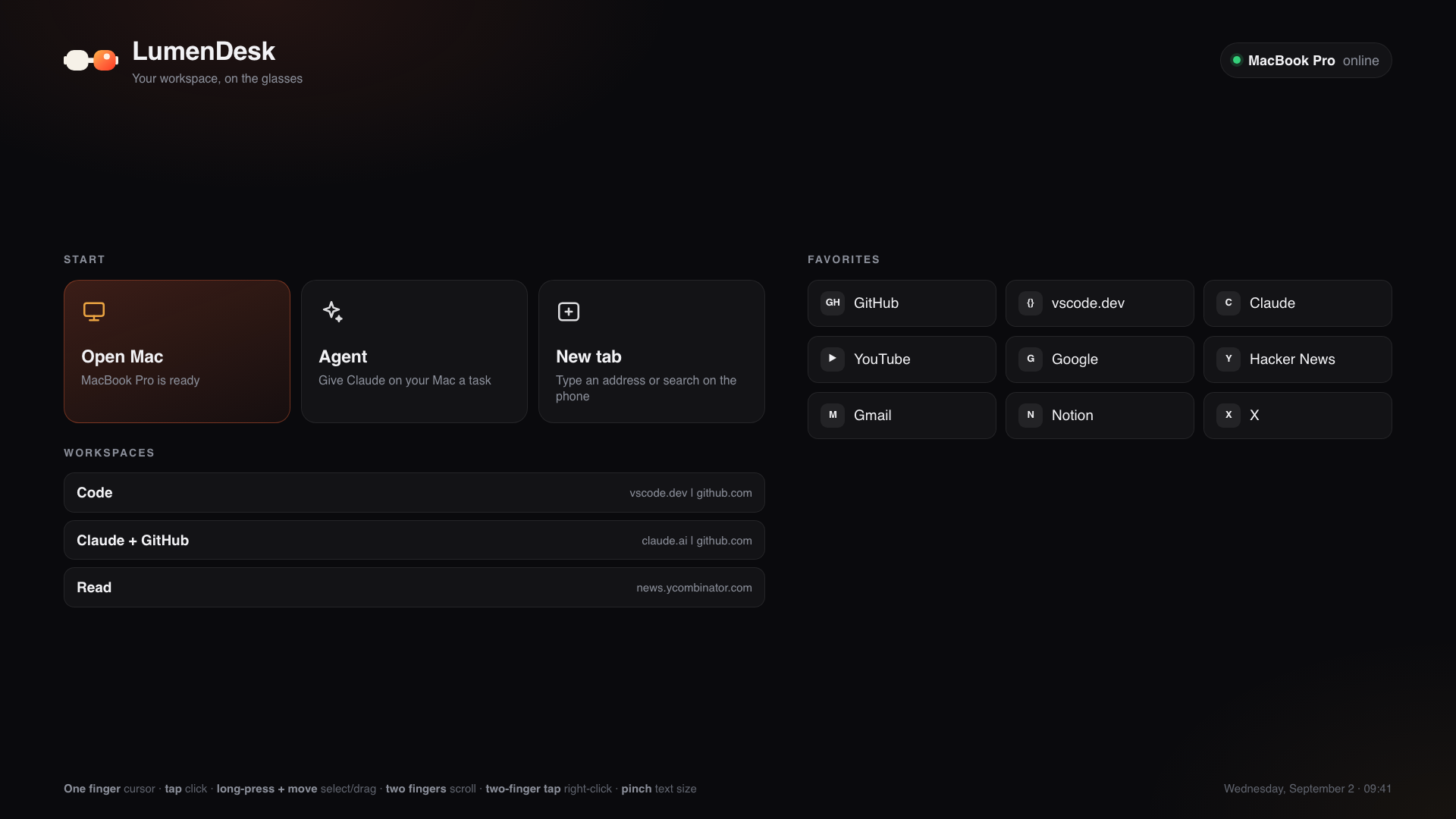
Plug USB-C glasses into your iPhone and your Mac at home appears in front of your eyes — a full 1080p desk, wherever you sit. Your phone is the trackpad and keyboard.
Works with any USB-C display glasses · private by design
What you get
Your whole workday, without the laptop.
Plug in and the Mac you left at home is in front of your eyes — big, sharp, and fully in your hands. Every app, every file, every tab. Nothing to sync, nothing to carry.
Remote Mac
Your real Mac. Not a phone mirror.
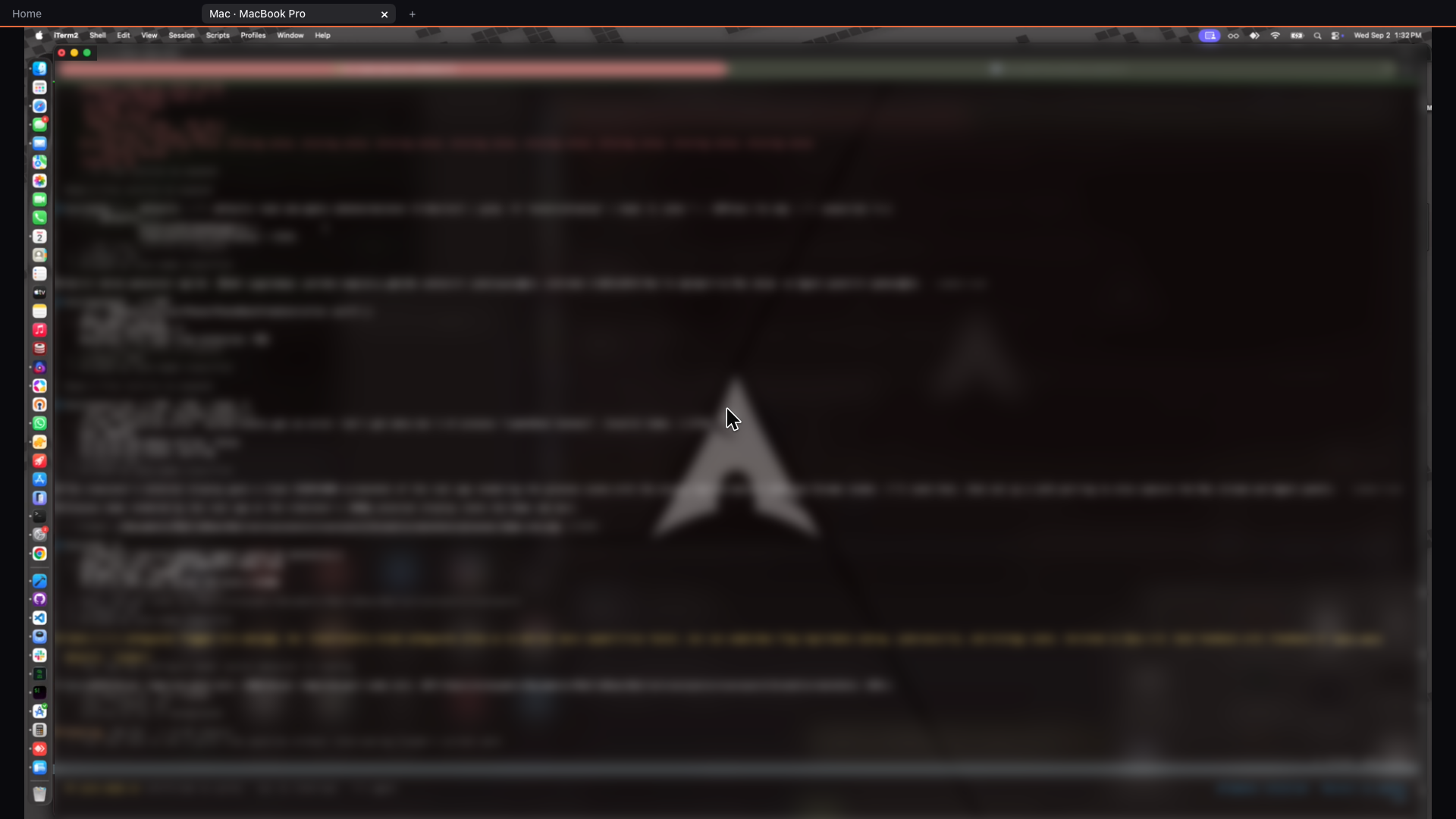
Your home Mac streams live to a 1920×1080 canvas. Code, write, browse, watch — the actual desktop with all your apps, exactly as you left it.
- Sharp 1080p video that keeps up with you
- Pinch to zoom into any corner
- Phone screen goes dark — saves battery, shows nothing to onlookers
Phone = input
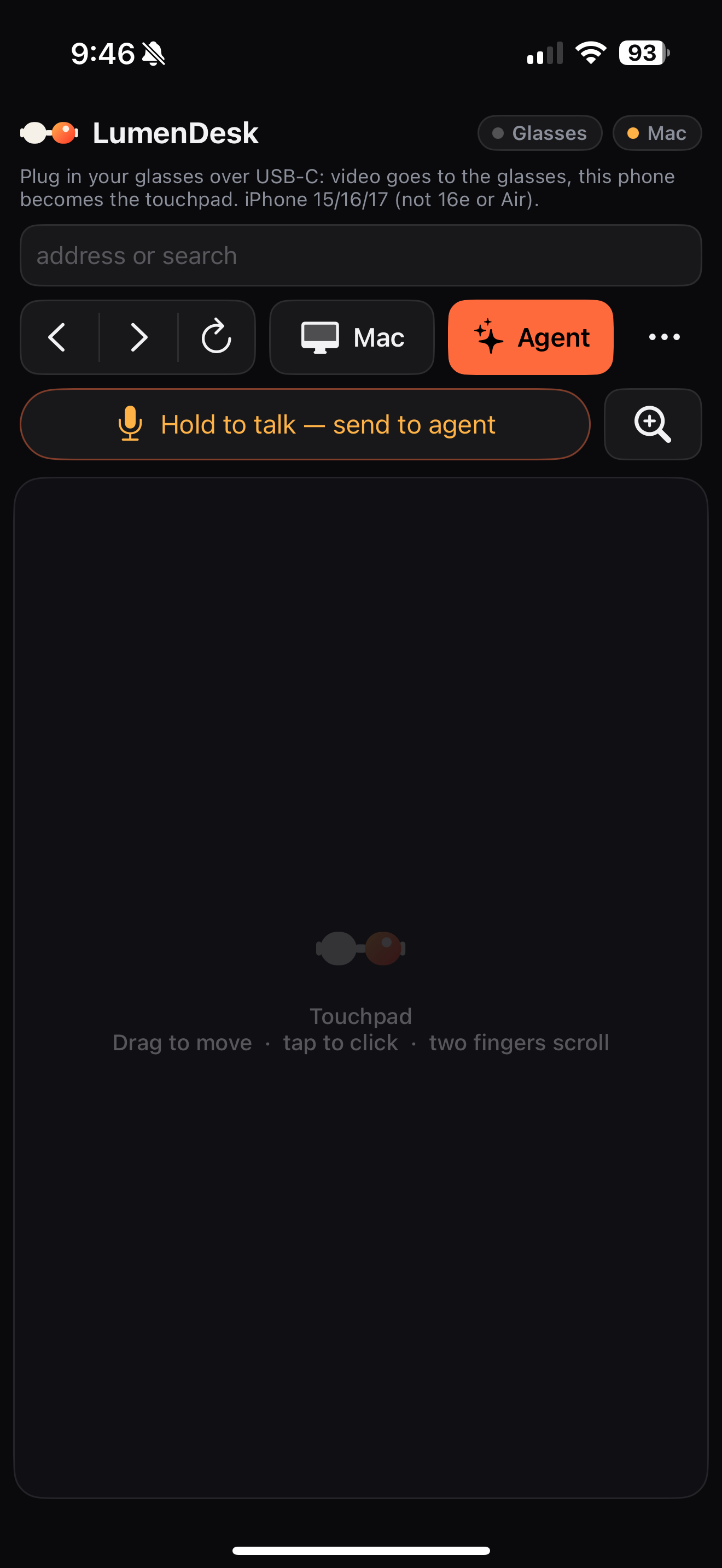
The keyboard and trackpad you never forget at home.
Point, click, scroll, drag and type from the phone already in your hand. Mac gestures included — three fingers up for Mission Control, swipe to switch desktops.
- Precise cursor, edge to edge
- Full keyboard with a ⌘ / Esc / arrow shortcut row
- Prefer real keys? Bluetooth mouse and keyboard work too
Built for builders
Your AI agents, on a panoramic canvas.
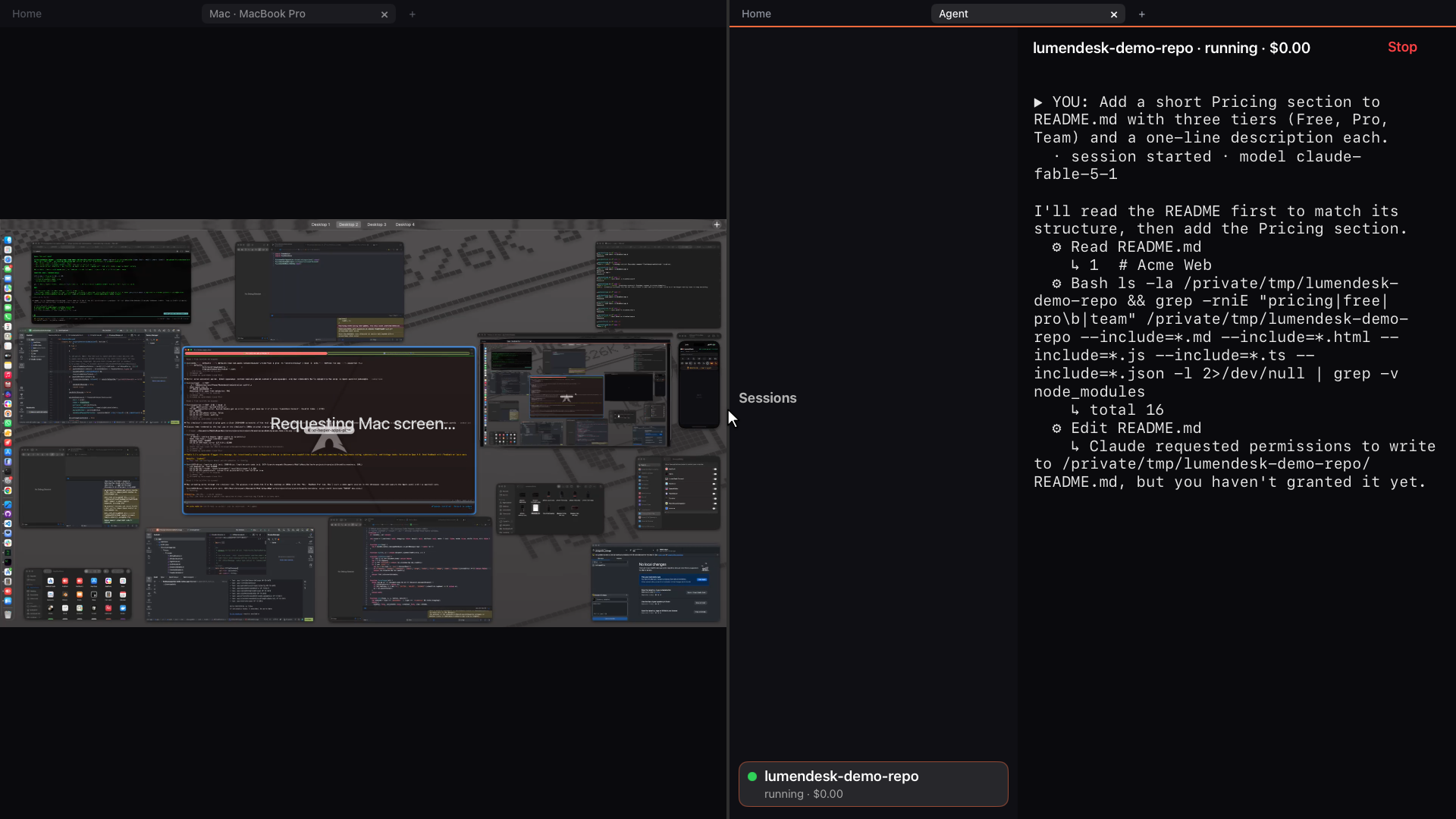
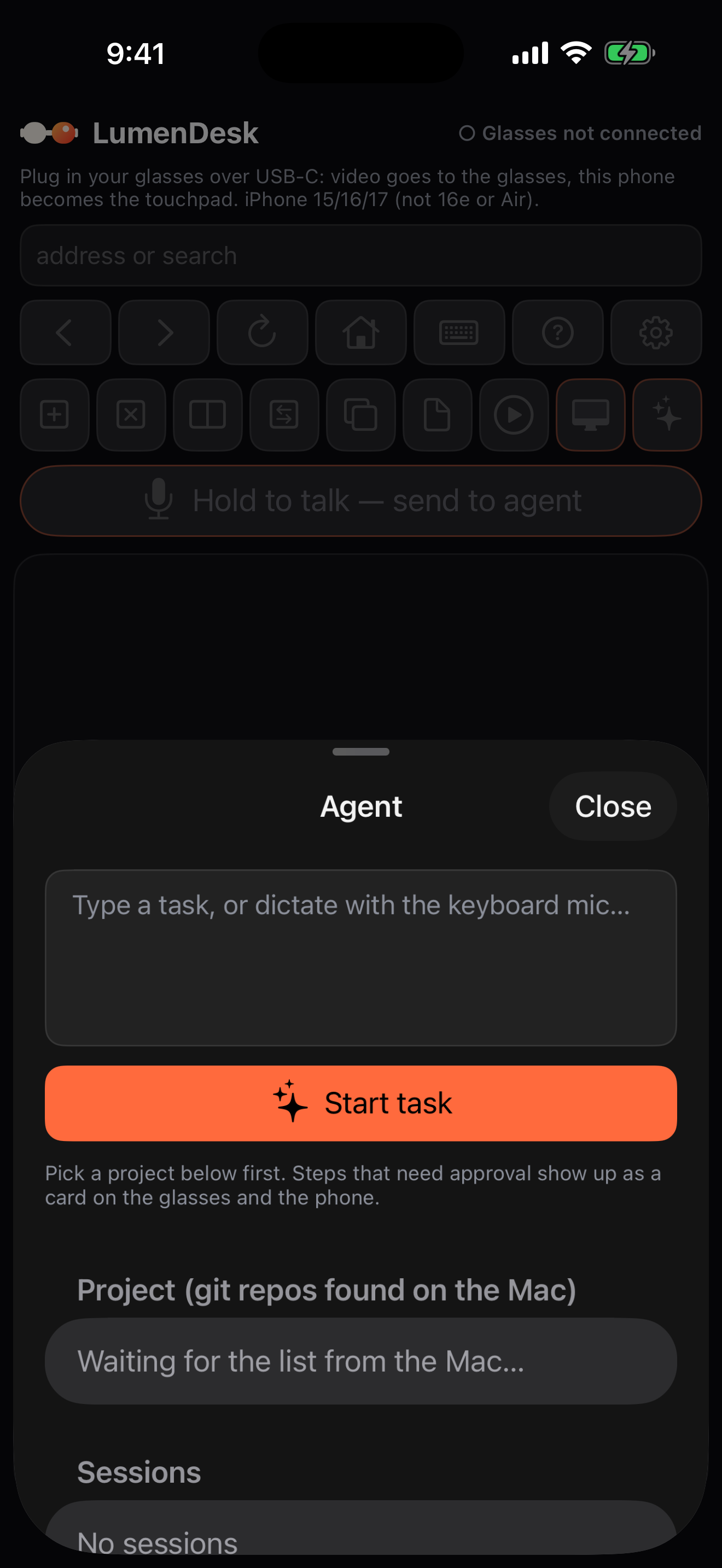
Run your coding agent and terminal on your home Mac and watch it work on the big screen. Review each change, approve with a tap, keep shipping from the café, the train, the couch.
- Live, color-coded agent transcript
- Approve changes and commit without touching the desk
- Talk to Lumen, the built-in voice copilot — it runs on your phone, private and free
Connection
Fast at home. Fast on the go.
On your Wi-Fi it connects directly. Away from home, LumenDesk opens an encrypted peer-to-peer link from your phone straight to your Mac — and quietly falls back to a secure relay if a network gets in the way. You never see the switch; you just keep working.
On your phone
Your entire setup fits in one pocket.
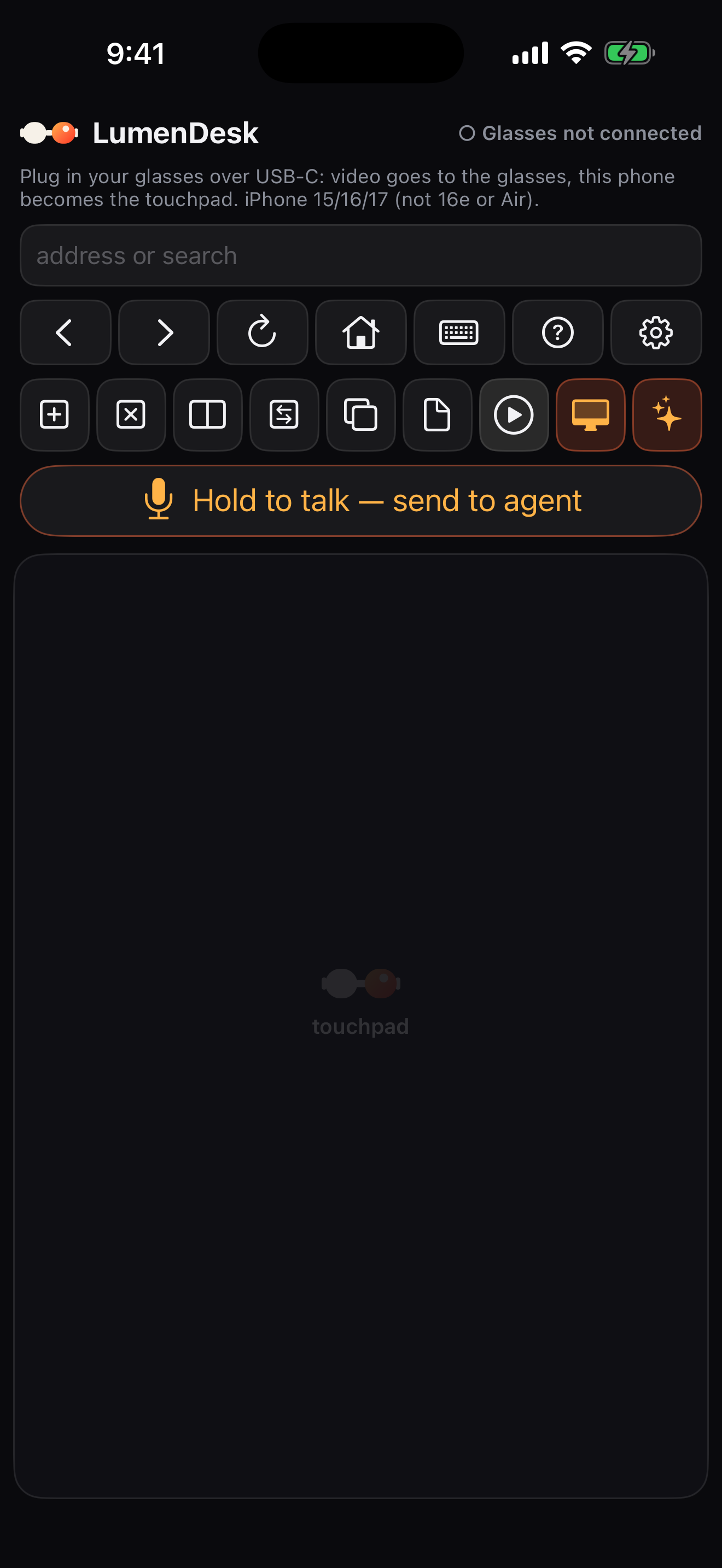
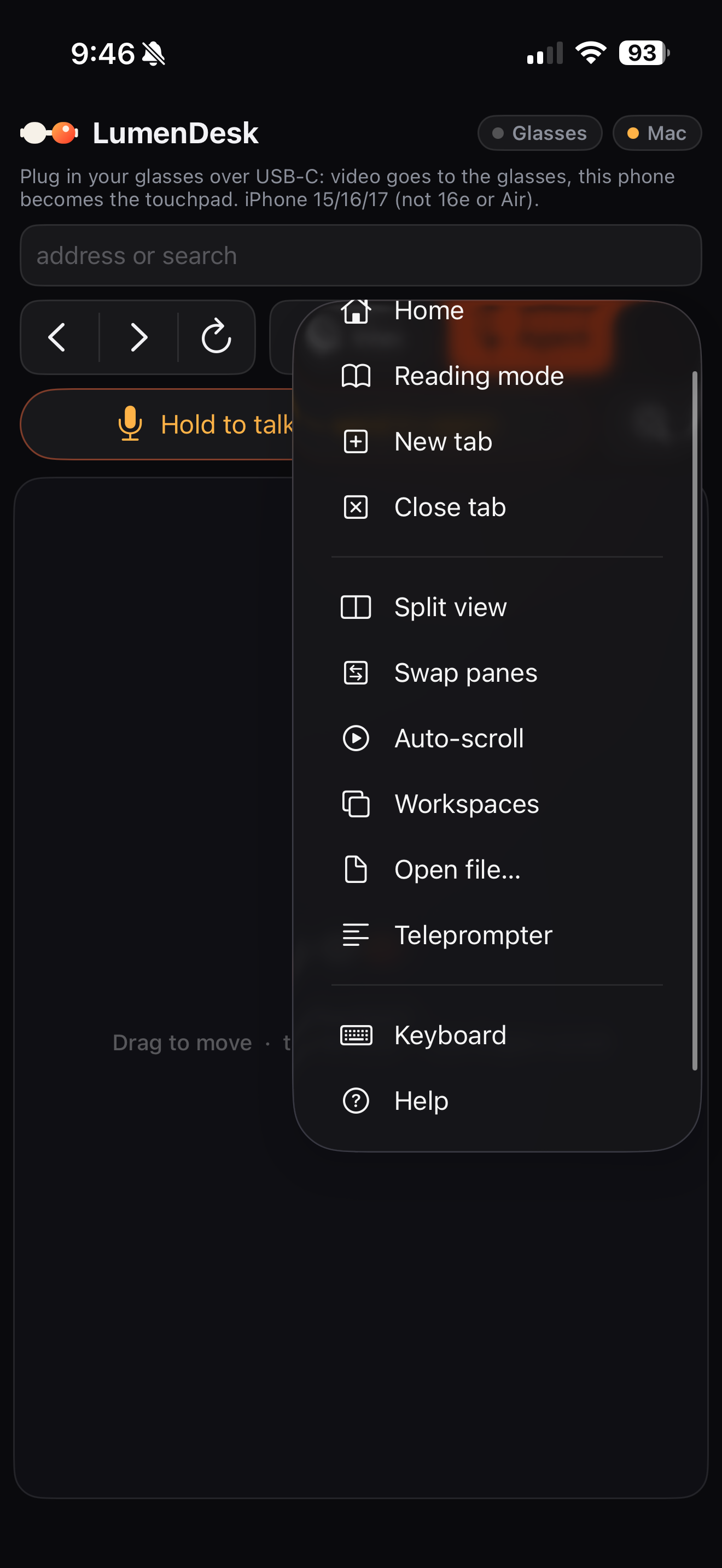
Glasses, iPhone, done. Your phone becomes trackpad, keyboard and command center — browse, drive your Mac, put your agents to work, or just say it out loud.
Also new
More than a big screen.
Everything that turns a phone and a pair of glasses into a real place to work.
Lumen, your voice copilot
Say what you want — open a site, split the screen, show your Mac, bring a screen forward — and Lumen does it. It runs entirely on your iPhone: no cloud, nothing leaves the device, and it's free for everyone.
Three screens around you Pro
Turn one pair of glasses into a wide desk: your Mac in the middle, two more screens at your sides. Swipe on the phone, press 1 · 2 · 3, or just ask Lumen to bring one forward.
Virtual monitors for your Mac Pro
Add extra displays that exist only in your glasses. Your Mac treats them as real monitors, so windows, Spaces and Mission Control work exactly like at your desk.
Dictate anywhere
Hold to talk and your words land wherever you're focused — a web field on the glasses, a message on your Mac, a task for your agent. No keyboard juggling.
Hear your Mac, privately Pro
Route your Mac's sound into your glasses. The Mac itself stays silent while you listen, so the room around it hears nothing — and the audio travels encrypted, just like the video.
Reading mode & teleprompter
Strip any page down to one big, clean column that scrolls on its own, or put your script in front of your eyes while you present. Both work with just the phone and glasses.
Next update
Your Mac, on the phone itself.
Glasses stay the heart of LumenDesk. The next update adds a built-in canvas for the moments you don't have them on: the workspace draws right on your iPhone, and on iPhone Duo the phone folds into a tiny laptop — Mac on top, trackpad and keyboard below.


Duo mode
Open your iPhone Duo and the top half becomes your Mac, the bottom half your trackpad and keyboard. Half-folded, the canvas ends exactly at the hinge. Close it and it's a normal phone again. Plug in glasses and everything moves to the glasses, as always.
Built-in canvas on any iPhone
A new switch in Settings shows the workspace on the phone screen when no glasses are connected — turn the phone sideways and your Mac fills the display. Off by default; with it off, nothing changes.
Touch, not touchpad
With the canvas on the phone, the picture is the touch surface: tap to click, hold and drag to select text, two fingers to scroll, pinch to zoom into exactly the spot under your fingers, three fingers up for Mission Control.
A display shaped like your phone Pro
LumenDesk Connect gives your Mac a virtual monitor in your phone's exact shape, so the stream fills the screen — no black bars, nothing cropped. Your window moves there while you're connected and comes back when you're done.
Watch
iPhone Duo, from folded to fully open
Recorded in the iPhone Duo simulator and narrated by an AI voice. The Mac's screen is blurred for privacy.
Ships in the next LumenDesk update, when Apple releases iOS 27.1 and Xcode 27.1 — the iPhone Duo software is still in beta today. Nothing about the glasses experience changes.
Team Desk
Your teammates' Macs, right next to yours.
Ask a teammate for their screen, or offer yours. It shows up as another screen in your glasses — sharp when you look at it, quiet when you don't. Always by consent, one session at a time.
Help, without the screen-share dance
"Come look at my screen" — from anywhere.
Share your Mac with one teammate for half an hour and let them drive, or just watch. Nobody can push a screen to you: you offer yours, they accept on their phone. A red strip on the Mac shows who's connected the whole time, and ⌃⌥⎋ ends everything instantly.
- View or control — your call, per session, with an expiry
- One driver at a time; the Mac's owner can always take the mouse back
- Up to three Macs in the glasses — yours in the middle, theirs at the sides
Files and clipboard, across Macs
Drag it over. Copy here, paste there.
Drag a file from one Mac's screen to the edge of the next and it arrives in that Mac's Downloads › LumenDesk Drops folder — checked on arrival and flagged like any download, with a note on the receiving Mac. Copy text on one screen and paste it on another. Both only when that Mac's owner ticked the box for the session.
- Nothing goes through our servers — your phone carries it, end-to-end encrypted
- Up to 200 MB per drop; folders arrive zipped
- Every share, file and end is in your team's log
Share my screen
Team Desk is included with Pro. Every account that shares or views needs Pro. Invite teammates from LumenDesk Connect on your Mac; they accept in the app on their iPhone or Mac.
Set up once
Three steps. Then it just works.
Plug in the glasses
Connect your glasses to your iPhone's USB-C port. A full 1080p desk appears in front of your eyes.
Pair your Mac once
Type the 6-digit code from the free Mac app. No address, no password — it remembers your Mac for good.
Work from anywhere
Leave the Mac at home. Your phone is the trackpad and keyboard, and your desk goes wherever you go.

LumenDesk for iPhone is a free download.
Pricing
One plan. Under ten dollars.
Start free with your glasses as a private big screen. Go Pro to bring your Mac with you — less than a coffee a week.
Free
Your glasses as a private big screen.
- Full-screen browser on the glasses
- Phone trackpad & keyboard
- PDF reader & teleprompter
Pro
or $89 / year · cancel anytime
- Your Mac, live on the glasses
- Full trackpad, keyboard & Mac gestures
- AI agents & terminal on your Mac, from anywhere
- Multiple virtual screens, Mac audio in your glasses, direct P2P
- Team Desk: teammates' Macs as screens in your glasses, drag & drop between screens, shared clipboard
Compatibility
What you'll need.
XR display glasses
Any USB-C DisplayPort glasses — the popular XR display glasses all work. LumenDesk isn't tied to one brand. See the list.
An iPhone
iPhone 15, 16 or 17 (USB-C with DisplayPort). Not supported: iPhone 16e and iPhone Air — they don't output video.
A Mac at home
Any Apple-silicon Mac running the free LumenDesk Connect app. Leave it on and plugged in while you're out.
An internet connection
Wi-Fi or cellular. LumenDesk finds the fastest, most private path automatically.
The other half of your setup
Meet LumenDesk Connect.
A free, lightweight companion for the Mac you leave at home. Install it once on the Mac you want to reach.
LumenDesk Connect for Mac
Apple silicon · macOS 13+ · about 15 MBLives in the menu bar, keeps your Mac awake and reachable, and streams it to your glasses — signed and notarized by Apple.
- Keeps the Mac awake and reachable, even with the lid closed
- Adds the extra virtual screens your glasses show (Pro)
- Sends the Mac's audio to your glasses, silently at home (Pro)
- Mission Control gestures from the phone's trackpad
- Ready for the next iPhone update: a virtual display shaped like your phone (Pro)
Version 0.1.5 · macOS 13 or newer · direct download, signed and notarized by Apple — not from the Mac App Store.
Install in a minute
1. Open the .dmg and drag LumenDesk Connect to Applications.
2. Open it — it lives in the menu bar.
3. Allow Screen Recording and Accessibility when macOS asks (once).
4. Sign in, click Generate pairing code, and enter the 6-digit code in LumenDesk on your iPhone.
What it asks for, and why
- Screen Recording — to stream your desktop to the glasses
- Accessibility — so the phone can act as trackpad and keyboard
- Full Disk Access (optional) — stops macOS from popping folder-permission prompts while you're away, which you can't click remotely

New from Lumen
LumenChat — share the AI chat, keep the secrets.
A free place to share ChatGPT / Claude conversations, prompts that worked, and whole Claude Code sessions. API keys, passwords, emails and phone numbers are stripped in your browser before anything is uploaded — the same private-by-design idea as LumenDesk.
Paste, review, share
Drop a chat or an export file. Everything sensitive is highlighted and replaced with placeholders like [API_KEY_1]; you decide what stays. Then you get a clean, readable link with “open in Claude / ChatGPT” buttons.
Nothing to install, no account needed
Runs entirely in the browser. Sign in with email only if you want a profile, likes and comments.
Questions
Good to know.
Do I need a Mac? +
Only for Pro — LumenDesk streams your own Mac, so there's nothing to rent and nothing in the cloud. The free tier (big-screen browser, trackpad, reader, voice copilot) works with just your iPhone and glasses.
Where do I get the iPhone app? Is it free? +
On the App Store. LumenDesk for iPhone is a free download (iOS 17 or later), and the free tier costs nothing. Pro, which brings your Mac, is $9.99 a month or $89 a year.
Where do I get the Mac app? +
Download LumenDesk Connect for free — it's signed and notarized by Apple and lives in your menu bar. Install it on the Mac you want to reach, then pair once with the 6-digit code.
Which glasses work? +
Any USB-C DisplayPort glasses that mirror your iPhone. LumenDesk isn't tied to one brand — see the compatible glasses list for popular models.
Is it laggy? +
No. Video is hardware-encoded H.264 and, whenever possible, travels over a direct peer-to-peer link — so it stays fast and responsive, even away from home.
Is my connection private? +
Yes. The stream is end-to-end encrypted and goes device-to-device when it can. When a network blocks a direct link, it uses an encrypted relay that only forwards bytes — it can't read them.
Can a teammate see my Mac without me knowing? +
No. Nobody can push a screen to you or pull yours. You offer your screen for a set time, they accept on their phone, and a red strip on your Mac shows who's connected until you end it — ⌃⌥⎋ ends everything at once. View or control, file transfer and clipboard are separate boxes you tick for each session.
How do files move between screens? +
Drag a file from one Mac's screen to the edge where the next Mac's screen peeks in, then release. It arrives in that Mac's Downloads › LumenDesk Drops folder, checked on arrival and flagged like a browser download — up to 200 MB per drop, folders arrive zipped — and only if that Mac's owner allowed file transfer for the session. Your phone carries it end-to-end encrypted; nothing is stored on our servers.
Will my Mac make noise while I listen in the glasses? +
No. When you turn on Mac audio, the Mac mutes itself and the sound plays only in your glasses — nobody near the Mac hears a thing. It travels encrypted, like the video, and the Mac's volume is restored when you stop.
Do I have to keep the Mac on? +
Leave your Mac plugged in and signed in while you're out. LumenDesk Connect keeps it awake so it's ready the moment you connect.
How do I cancel? +
Anytime, in one tap from your account — your Pro features stay active until the end of the period you've paid for.
Didn't find it? Ask LumenDesk.
Short answers drawn from this page — glasses, iPhones, pricing, the Mac app.
Your desk goes
where you go.
Everything on your Mac, in front of your eyes, from anywhere. Set up once, then just plug in.